


MP4 is one of the most popular video file formats widely used for capturing, sharing, and streaming videos across different devices. Despite being popular and having wide compatibility, MP4 videos sometimes fail to play on Windows PC. There are several reasons, including corruption, incomplete downloads, codec errors, and media player limitations, why your MP4 videos won’t play.
Don’t worry, several video repair methods are available online that you can try to repair MP4 files that won’t play on Windows. In this guide, we’ll discuss everything to make your videos playable again, including the causes of the issue, suitable repair workarounds, and preventive tips to avoid such issues in the future. Let’s get started!
Why Won’t MP4 Videos Play on Windows?
When your videos stop playing, it generates errors like “Cannot play the file,” “This file isn’t playable,” “0xc10100bf,” or “Unsupported format” on your Windows PC. Before diving into proper repair methods to fix the issue, it’s important to find the possible causes. Some common reasons include:
● Corrupted MP4 Videos: MP4 corruption, whether due to abrupt system shutdown during recording or transfer, damaged storage media, or any other reason, prevents the video from playing.
● Missing or Unsupported Codecs: MP4 is a container format that contains different codecs such as H.264, HEVC, AAC, etc.
● Incomplete Downloads: If your MP4 video is not completely downloaded due to improper internet or any other reason, the files become unplayable.
● Outdated or Faulty Media Player: If the version of media player stored on your Windows PC is outdated, it might not support modern codecs or high-resolution (4K/8K) MP4 files and prevent them from playing.
● System or Driver Issues: Outdated graphics drivers, system bugs, or Windows updates can affect video playback.
Quick Methods to Fix MP4 Videos Not Playing On Windows
Below are some most effective workarounds that you can try to fix unplayable or corrupted MP4 videos on Windows:
Method 01: Try Playing Videos on a Different Media Player
Before proceeding with technical approaches to fix your videos, try playing your video file in a different media player. Some popular media players that you can try include:
● VLC media player
● PotPlayer, and
● MPC-HC (Media Player Classic)
If your MP4 video plays normally on other media players, it means the issue is not with your video file but with the default media player. If your downloads folder is a constant mess, declutter your digital life can make this kind of issue less frequent.
Method 02: Transcode MP4 Videos Using VLC Player
VLC is more than just a video player; it also offers multiple built-in repair capabilities to repair damaged MP4 files. If your video won’t play due to incompatible or missing codecs, try transcoding it. VLC provides a conversion feature, allowing you to rebuild the video structure, improve compatibility, and restore smooth playback.
To transcode your MP4 videos using the VLC player, you have to:
● Launch VLC media player on your Windows PC.
● Click Media from the menu bar located at the top, then select Convert/Save.
● Go to the File tab, click Add and upload the MP4 videos you want to transcode.
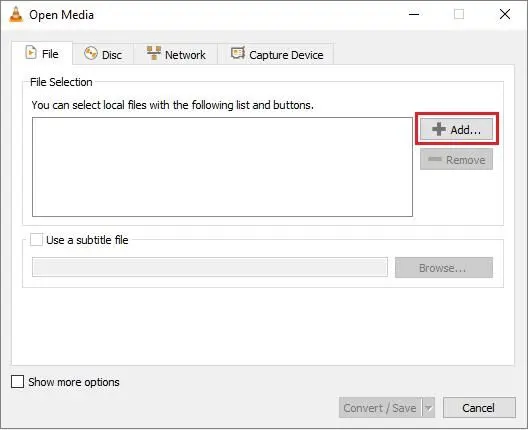
● Click the Convert/Save button at the bottom.
● Under Profile, choose the desired output format—such as H.264 + MP3 (MP4).
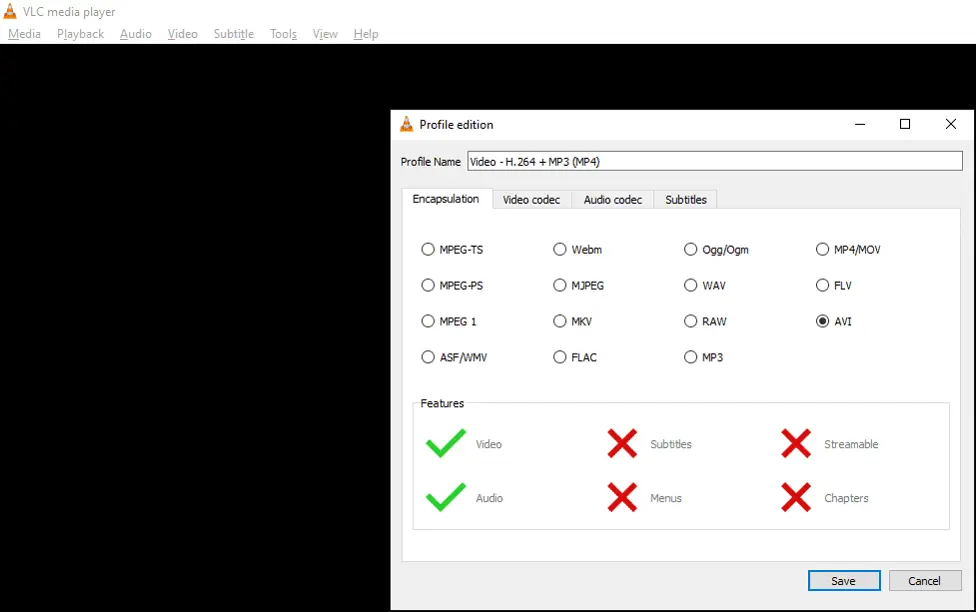
● Now, tap Browse to set the destination folder and filename for the converted video.
● Lastly, click Save to start the transcoding process.
Method 03: Repair MP4 Videos Using VLC Video Fix Feature
Another built-in feature that you can try to repair unplayable MP4 videos on VLC is by changing the file extension to .AVI. Sometimes, converting the format automatically rebuilds missing frames and metadata. All you have to do is:
● First, rename your MP4 video by changing its file extension. Right-click the file, then select Rename and replace the extension with .AVI. Press Enter to continue.
● Launch VLC media player.
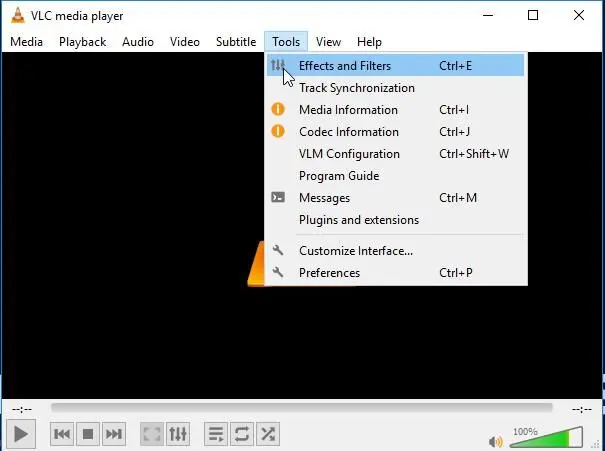
● Click Tools > Preferences > Input or Codecs.
● Select Always Fix next to Repair AVI Files.
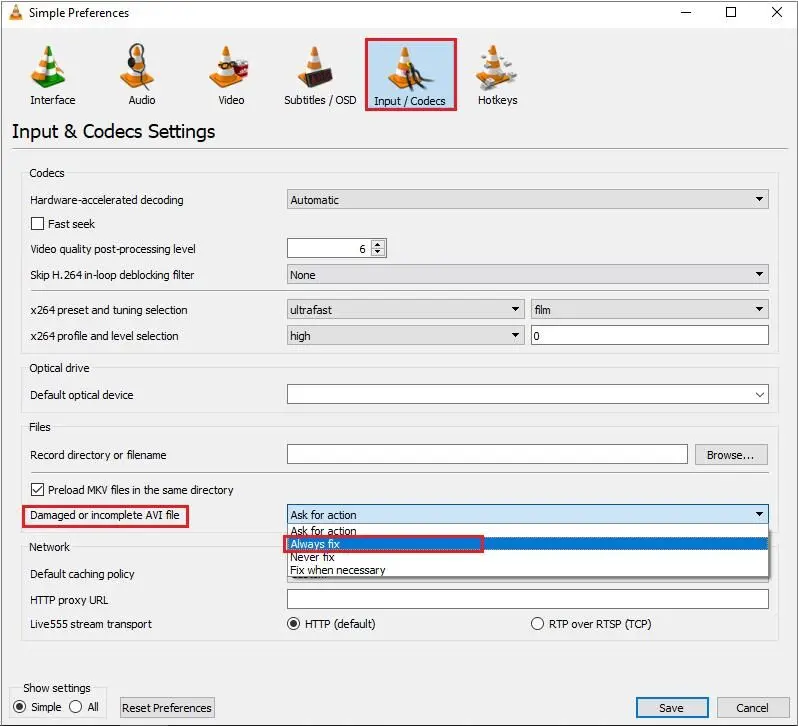
● Click Save to save the changes.
Now, try playing the AVI file converted from the MP4 file. This free method should resolve MP4 file issues.
Method 04: Try Third-Party Video Repair Software
If the above methods seem complex or fail to repair MP4 files, try third-party video repair software like Stellar Repair for Video to fix the video. It is one of the most effective and user-friendly tools designed specifically to fix damaged, corrupted, or unplayable video files, including MP4, MOV, AVI, M4V, and more. The software performs a deep scan of your storage device to find and fix corrupt/damaged video files.
The Stellar Repair for Video tool repairs issues such as broken headers, audio-video sync problems, distorted playback, black screen errors, and videos that won’t open at all. This software can repair even severely corrupted video files that were damaged during recording, transferring, file conversion, or due to sudden power cuts.
Here’s how to repair MP4 files that won’t play on Windows using this video repair software:
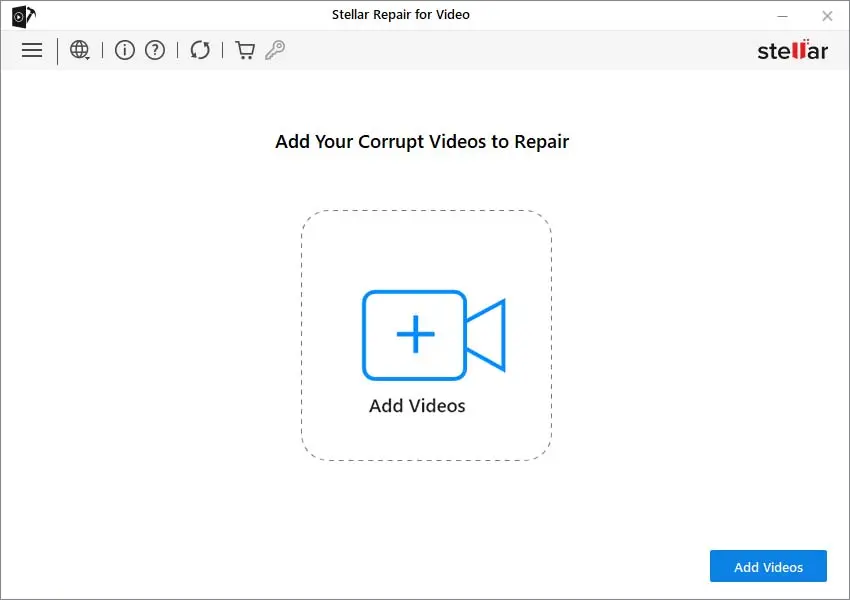
Step 1: Download and install the Stellar Repair for Video tool on your Windows PC. Launch the software and from the home screen, click Add Videos to upload the corrupted or unplayable MP4 videos you need to repair.
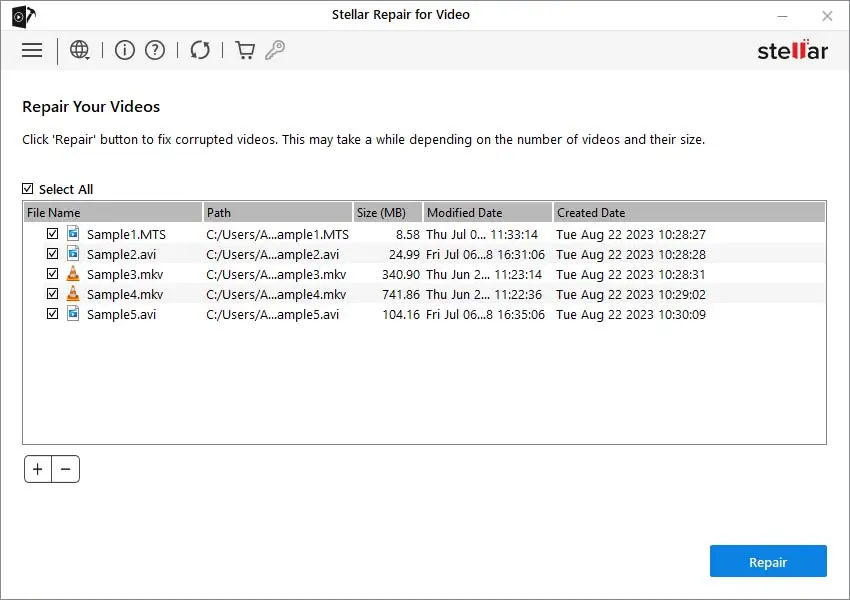
Step 2: Click Repair and wait till the repairing process is complete. Once it is completed, preview the repaired files to verify video quality, audio clarity, and playback before saving.
Step 3: Click the Save Repaired Files button to save repaired videos to a safe location on your system.
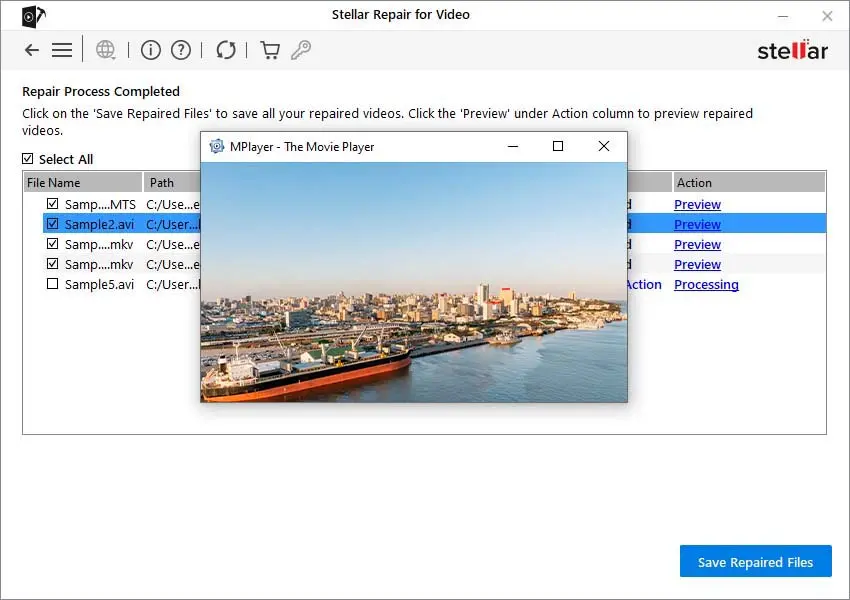
Note: Try saving the repaired video files on a different drive to prevent overwriting original data.
If you’re learning content workflows from scratch, the best online courses for digital marketing includeoften includes practical video basics too.
Preventive Tips to Avoid Video Damage in The Future
Now that you are familiar with different video repair fixes to make your MP4 videos playable, it’s time to check some preventive measures to avoid such issues in the future. For this:
● Always Use Reliable Storage Devices: Choose high-quality storage media such as SD cards, USB drives, and external drives to save your videos. Cheap or unbranded storage often leads to data corruption and video damage.
● Keep Your Devices Charged: Recording videos on a low battery device increases the chances of improper saving and corrupted MP4 files. Keep your device sufficiently charged before shooting.
● Use Updated Video Editing Software: Outdated or incompatible editing tools can break video structure. Always install updates before editing or converting MP4 files.
● Create Multiple Backups: Maintain backups on cloud services (Google Drive, OneDrive, iCloud) or external drives. This ensures your videos remain safe even if your primary storage fails. Broken media files can slow down publishing, and bloggers and designers build brands touches on building consistent output.
Conclusion
If your MP4 video is unplayable on Windows, it’s time to apply adequate video repair fixes. Whether the MP4 file won’t play due to corruption, codec issues, incomplete downloads, or media player incompatibility, there are several video repair fixes to make your videos playable again. You can try fixes like switching media players and transcoding videos using VLC to repair your MP4 videos.
However, if the MP4 file is severely corrupted or continues to show errors despite applying the above methods, try a professional MP4 video repair tool like Stellar Repair for Video. With the right steps, most unplayable MP4 files can be successfully repaired and restored.


