


A free password manager is enough for many people. If it securely stores your passwords, generates unique credentials, works on your devices, and supports appropriate account protection, paying for a subscription may not provide much additional value. Paid password managers become more useful when you need family sharing, emergency access, advanced security reports, additional storage, or specialized account-management features.
The important difference is not simply free versus secure. It is whether the features you need are available without paying.
Key Takeaways
- Free does not automatically mean insecure. Reputable free password managers can provide strong core protection.
- Paid does not automatically mean safer. Some subscriptions primarily add convenience, sharing, and management tools.
- A free plan that supports unique password generation, encrypted storage, autofill, and your required devices may be sufficient for everyday use.
- Paid plans can become worthwhile for households, advanced users, and people who need emergency access or specialized features.
- The best choice depends on security design, supported devices, recovery options, and your actual requirements—not the subscription price alone.
Free vs Paid Password Managers: What's the Difference?
A password manager is software that helps you create, store, retrieve, and sometimes automatically enter login credentials.
Instead of remembering a separate password for every website, you use a password manager to maintain a collection of unique credentials.
A reputable password manager can reduce the temptation to reuse passwords across accounts. That matters because when attackers obtain credentials from one compromised service, they may try those same credentials on other websites.
The National Institute of Standards and Technology (NIST) recognizes the value of password managers and requires systems covered by its current digital identity guidance to accommodate password managers and autofill.
Free and paid products generally serve the same basic purpose.
The differences usually appear in which additional features, account options, and support services are included.
Free vs paid password manager feature comparison
| Feature | Free password managers | Paid password managers |
|---|---|---|
| Password storage | Available in reputable free options | Generally included |
| Password generator | Commonly included | Generally included |
| Autofill | Commonly included | Generally included |
| Encrypted storage | Available in reputable free options | Generally included |
| Multi-device syncing | Available in some generous free plans | Commonly included |
| Passkey management | Available in several free options | Also available |
| Password health alerts | Available in some free options | May include additional monitoring |
| Family vaults | Available in some ecosystems; may have restrictions | Often expanded or more configurable |
| Emergency access | Not universal | Available with certain paid plans |
| Encrypted file attachments | Often limited | Available in some paid plans |
| Advanced administration | Often limited | More common in family and business plans |
These are common plan patterns, not universal requirements. Check the provider's current feature matrix before choosing a plan.
For example, Bitwarden's official plan documentation lists unlimited login storage and access across devices in its free individual offering, with premium additions such as encrypted file attachments and emergency access.
Proton Pass also lists unlimited logins and devices on its free plan while reserving several advanced features for paid subscriptions.
This demonstrates why a blanket claim that free password managers are too limited is misleading.
Are Free Password Managers Safe?
Yes, a free password manager can be safe when it is well-designed, maintained, and used properly.
A provider can offer the same core encryption design to free and paying users while charging for additional features.
For instance, Proton states that its free and paid Pass plans use the same underlying privacy protection for core password management. That is a vendor statement about its product, not independent proof that every password manager provides equivalent security.
The right question is not whether a product charges money.
It is whether you can understand and reasonably trust how it protects your credentials.
What to check before trusting a password manager
1. Encryption and security architecture
Look for an explanation of how the provider protects stored credentials.
Some providers use designs in which the service cannot ordinarily read the contents of your encrypted vault. Marketing terms such as zero knowledge should be assessed alongside technical documentation rather than treated as proof of perfect security.
2. Independent security assessments
Consider whether the provider publishes meaningful independent audits, identifies what was assessed, and explains how findings were addressed.
An audit is useful evidence, but it is not a permanent guarantee against vulnerabilities.
3. Multi-factor authentication
Check how you can protect the account containing your vault.
Prefer strong multi-factor authentication, and use phishing-resistant options such as security keys or suitable passkey-based authentication when supported.
Do not assume MFA is exclusive to paid plans.
4. Recovery procedures
Understand what happens if you forget your main vault password or lose access to your primary device.
Different providers use different recovery models. Some security designs intentionally limit the provider's ability to restore access without your recovery information.
5. Export and portability
Find out whether you can move your credentials to another service.
A useful password manager should not leave you unexpectedly unable to access your own information when you change devices or providers.
6. Ongoing maintenance
Look for a clear security-update process, a supported application, and a trustworthy way to obtain updates.
A neglected password manager can introduce risks regardless of whether it originally cost money.
Can a password manager be hacked?
No software is immune to compromise.
Attackers may target the service, your account, your device, browser extensions, or recovery methods.
Even a strongly encrypted vault can be put at risk if an attacker obtains the information needed to unlock it or compromises an already unlocked device.
A password manager reduces certain risks, especially password reuse, but does not eliminate phishing, malware, or account takeover.
You should still protect the password manager itself, keep devices updated, and use MFA wherever available.
What Do Paid Password Managers Actually Offer?
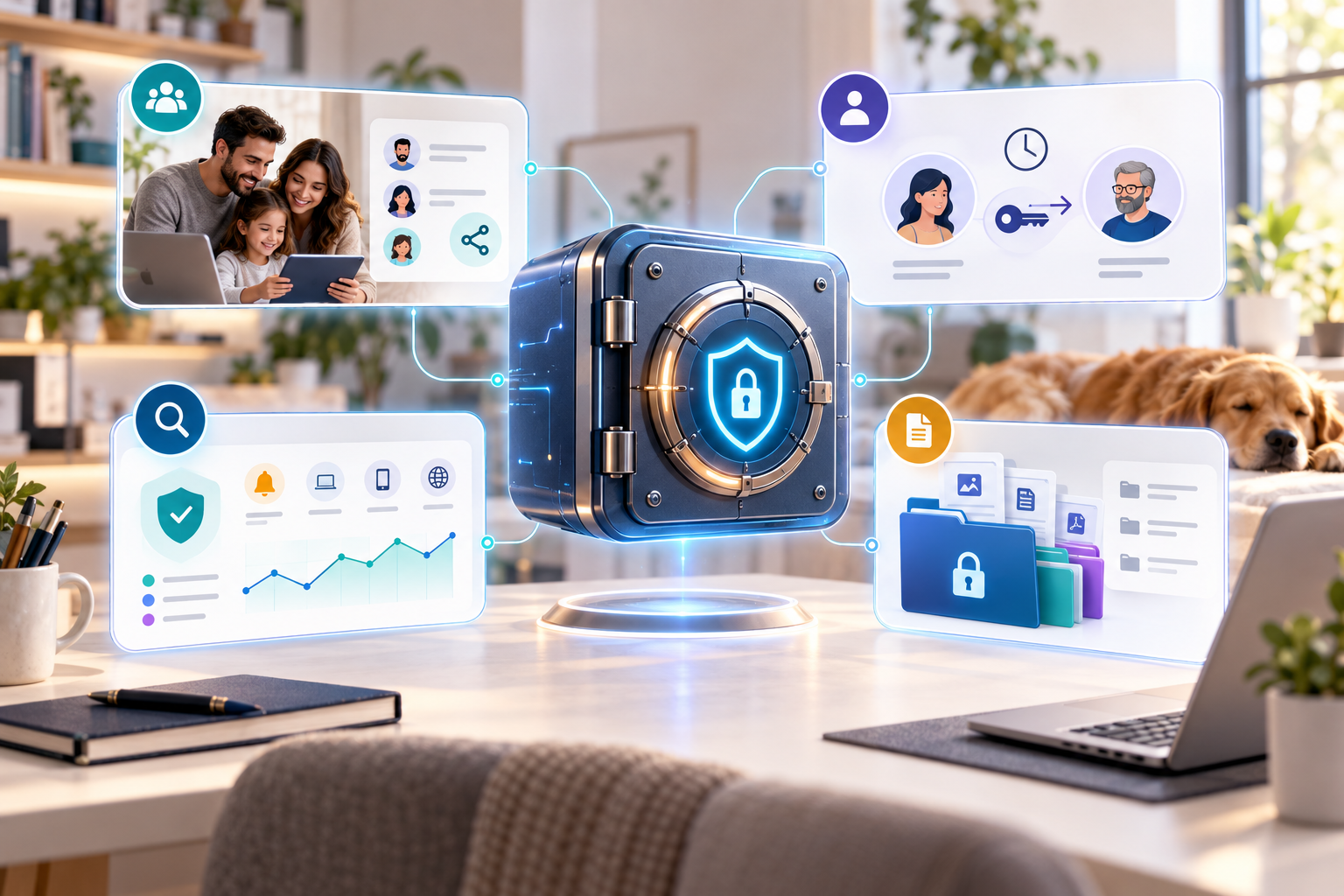
Paying can make sense when premium functionality solves a recurring problem.
Here are the features most worth examining.
1. Secure household sharing
A family may need controlled access to shared accounts without exposing each person's private credentials.
For example, household members might need access to a jointly managed streaming service or utility account.
Some password managers provide shared vaults, separate private areas, and administrative controls.
Before paying, check whether the sharing system allows the intended people to access only the appropriate items.
Also check whether your existing free ecosystem already supports the sharing you need.
Apple's Passwords app documentation, for example, describes shared credential groups in its supported ecosystem.
2. Emergency access
Some paid plans offer a way to designate a trusted person who may request access under defined conditions.
This can be useful for account continuity during an emergency.
However, emergency access can also create security and privacy concerns.
Review the approval process, waiting period, revocation options, and exactly what the other person can access.
Do not assume every premium plan includes it.
3. Additional security monitoring
Premium subscriptions may include reports about reused passwords, compromised credentials, or other account-related risks.
Some providers also offer broader dark-web monitoring.
Such alerts can be helpful, but they do not establish that the provider can detect every breach.
An alert's value depends on the underlying data, its freshness, and whether you can take useful action.
Free products may already include password health warnings or breach-related alerts.
Compare the precise coverage before paying for another notification service.
4. Integrated authentication tools
Some premium products generate time-based one-time passwords within the password manager.
This can simplify signing in to accounts that support authenticator codes.
However, storing passwords and authenticator secrets together introduces a trade-off: convenience increases, but compromise of the vault could expose both.
For high-value accounts, consider whether separate authentication devices or phishing-resistant methods offer a more suitable protection strategy.
5. Advanced organization and attachments
Premium plans may allow additional vault organization, encrypted files, or other record types.
These can be useful if you manage many accounts or need more structured storage.
Do not pay for these features simply because they appear on a long product comparison chart.
First establish whether you actually use them.
Examples of Free and Paid Password Manager Options
There are several different models in the market.
The following examples illustrate how products structure their plans. This is a documentation-based comparison, not a hands-on product review or a ranking.
Bitwarden: Free core features with optional upgrades
Bitwarden offers a free personal plan that includes password storage, password generation, and access across devices.
Its premium individual plan adds features such as an integrated authenticator, file attachments, emergency access, and additional reports.
According to Bitwarden's published plans, these additional features are separate from the basic functionality available to free users.
Who should consider it? Someone who wants a dedicated password manager and prefers to start without a subscription, with the option to upgrade for specific features.
Proton Pass: Free multi-device access with privacy-focused extras
Proton Pass provides unlimited stored logins, password generation, and support across multiple devices in its free tier.
Paid plans add features such as expanded email aliases, additional secure sharing capabilities, monitoring tools, and emergency access.
Its official plan comparison explains the available tiers.
Who should consider it? Someone who wants core password management without paying initially and may later value email aliases or additional account-protection features.
Google Password Manager: Built into the Google ecosystem
Google Password Manager is a built-in option for people who use Chrome, Android, and supported Google-account integrations.
It can store passwords and passkeys, generate credentials, autofill sign-in forms, and notify users about compromised passwords.
Google explains these functions in its Password Manager Help Center.
Who should consider it? Someone whose devices and preferred browsers work well with Google Password Manager and who does not need the features of a dedicated third-party service.
Apple Passwords: Integrated credential management
Apple Passwords helps users manage passwords, passkeys, verification codes, and shared credentials.
With iCloud Keychain, supported credentials can sync across approved Apple devices. Apple also provides certain Windows integration capabilities.
Apple's Passwords documentation describes its account protection, sharing, and supported integrations.
Who should consider it? Someone primarily using supported Apple devices who prefers an integrated password-management experience.
1Password: A subscription-focused alternative
Unlike the permanent free tiers offered by some competitors, 1Password's standard personal offering is subscription-based, with a time-limited free trial.
Its official personal pricing page describes individual and family plans, sharing tools, security alerts, and supported platforms.
Who should consider it? Someone willing to pay for the particular features and experience that its plans provide, after confirming that the trial meets their requirements.
What about pricing?
As checked on October 30, 2026:
- Bitwarden advertised an individual Premium plan at $19.80 per year, excluding applicable taxes.
- 1Password advertised an Individual plan with a regular annual-billing equivalent of $3.99 per month, with a lower first-year promotion for eligible new customers.
- Proton Pass offered both a permanent free tier and paid plans with promotional pricing.
These are dated vendor-published figures, not independently verified checkout totals. Prices, taxes, currencies, promotions, and renewal conditions may change.
Check the current official checkout terms before purchasing.
A low annual price does not automatically establish better value. A free service you use consistently may be more useful than an affordable paid service you find difficult to manage.
Who Should Choose a Free or Paid Password Manager?
The right choice becomes clearer when you consider the actual user.
| Your situation | Reasonable starting choice | Why |
|---|---|---|
| Student or individual with ordinary online accounts | Reputable free plan | Core password generation and storage may be sufficient |
| Person using mostly Apple devices | Evaluate Apple Passwords first | Existing integration may cover everyday needs |
| Chrome/Android-focused user | Evaluate Google Password Manager first | Built-in functionality may reduce the need for a separate subscription |
| Individual using many different platforms | Evaluate a dedicated free cross-platform manager | Cross-device compatibility matters more than the price |
| Household sharing many accounts | Compare family-sharing features | Paid plans may offer better permissions or management |
| Person needing emergency access | Compare plans with explicit emergency-access features | This capability is not universal |
| Business managing employee credentials | Evaluate a suitable business product | Ownership, provisioning, auditability, and offboarding matter |
These are starting points, not guarantees that a particular product will work on every device or fulfill every requirement.
When a free password manager is enough
You probably do not need to pay merely to store passwords when your free manager already:
- Generates strong, unique passwords.
- Works across your required devices.
- Supports secure autofill.
- Protects the account with suitable authentication.
- Provides practical recovery options.
- Lets you export or migrate your data when needed.
If these conditions are met, the next improvement in account security may have little to do with purchasing a subscription.
Instead, you may gain more by replacing reused passwords, enabling MFA, and reviewing account recovery settings.
When paying becomes worthwhile
A paid plan becomes more compelling when you can identify a specific missing feature.
For example:
- You regularly share credentials with several family members.
- You need defined emergency-access arrangements.
- You require advanced vault organization or encrypted attachments.
- You want a particular monitoring capability after checking its coverage.
- Your work requires administrative controls that a personal free plan does not provide.
For organizations, choose a dedicated business plan when business requirements justify it rather than using shared personal credentials as a substitute.
How to Decide Whether a Password Manager Is Worth Paying For
Before buying a subscription, use this practical evaluation process.
Step 1: List your essential devices
Write down the platforms you actually use.
For example: Windows laptop, iPhone, Chrome browser, and an occasional Android tablet.
Check whether the free plan supports the specific combination.
Do not assume that an app being available on several platforms means every syncing or autofill function behaves identically across them.
Step 2: Identify one feature you cannot do without
Avoid starting with a premium feature list.
Instead, finish this sentence:
"I would pay for a password manager because I need ______."
If the answer is unclear, begin with a reputable free option.
Step 3: Compare the security model
Review the provider's encryption explanation, account-authentication options, security disclosures, and supported recovery mechanisms.
Do not assume a more expensive subscription automatically has stronger encryption or better protection.
Step 4: Understand the real subscription cost
Check:
- The first-year price.
- Renewal pricing.
- Monthly versus annual billing.
- Taxes or regional differences.
- Family-seat limits.
- Refund and cancellation terms.
- What happens to your data if you downgrade.
Promotional pricing can make a product attractive initially while changing the longer-term cost.
Step 5: Confirm the exit route
Look for supported export and import options.
Find out how passwords, notes, attachments, and passkeys can be transferred.
Not every item type is necessarily portable between providers.
A product that is easy to leave may be preferable to one that locks you into a workflow you later regret.
Step 6: Try your normal workflow
If a trial or free tier is available, test ordinary tasks on your own devices:
- Saving a new login.
- Updating an existing password.
- Autofilling on a trusted website.
- Accessing the vault on another device.
- Using or recovering the account with its official methods.
Do this using accounts and devices you control, without exposing sensitive credentials to untrusted people or services.
Step 7: Pay only when the difference is meaningful
If the free version already does everything you need, there may be no practical reason to upgrade.
If a premium feature reliably solves a specific problem, paying may make sense.
This is a more useful decision than selecting whichever provider advertises the largest discount.
How to Switch Password Managers Safely
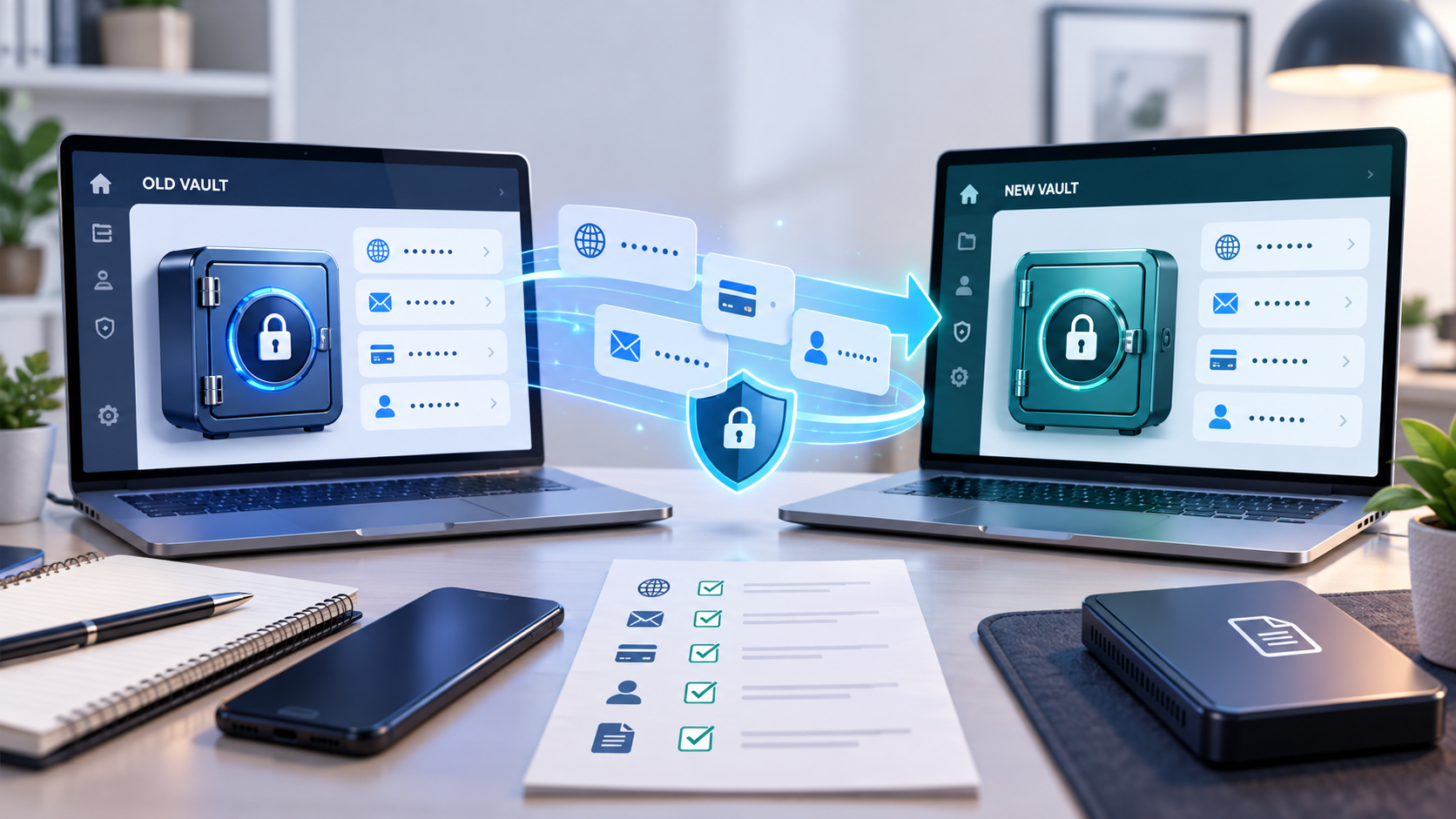
Moving to a different password manager deserves care because you are transferring sensitive account credentials.
1. Set up the new manager first
Download the new software only from its official website, app store listing, or other authenticated distribution channel.
Create the account and configure the available security protections.
2. Establish a recovery plan
Before moving important accounts, understand the provider's account-recovery options.
Safeguard any recovery codes according to the provider's instructions.
Avoid storing the only recovery method inside the vault it is supposed to recover.
3. Check supported import formats
Use the official import and export documentation for both services.
Some exports, especially CSV files, may contain passwords in readable text.
Treat such files as highly sensitive. Avoid cloud uploads or emailing them, and remove temporary plaintext files securely after confirming the migration.
4. Import and check a small sample
Confirm that several important logins appear correctly in the destination.
Check website addresses, usernames, password values, and whether the new manager recognizes the appropriate sign-in forms.
5. Handle passkeys and special items separately
Password exports may not transfer passkeys, file attachments, authenticator secrets, or other item types.
Use each provider's documented migration methods.
Where supported transfer is unavailable, you may need to register a new passkey or authentication method while you still have access to the account.
6. Test recovery and sign-in before removing anything
Verify access to important accounts and keep the old manager available until you are satisfied that the migration worked.
Do not delete the old vault merely because an import process reports success.
7. Remove redundant credentials carefully
Once you have verified the destination and recovery methods, review the old service, browser-saved passwords, temporary exports, and any automatic renewal.
Do not cancel or delete access before testing that the new setup works.
Do Passkeys Make Password Managers Unnecessary?
Not necessarily.
Passkeys are a different authentication method designed to reduce reliance on traditional passwords.
A properly implemented passkey uses cryptographic credentials tied to the appropriate service, making it resistant to common password-phishing techniques.
But many services still use passwords, and people often manage accounts across several devices and platforms.
Password managers can help store both password-based logins and supported passkeys.
The important distinction is that a password manager does not turn an ordinary password into a phishing-resistant credential.
Passkeys and suitable hardware security keys can provide stronger phishing resistance where supported.
For a general explanation of the differences, see the NIST Digital Identity Guidelines.
Frequently Asked Questions
1. Is a free password manager less secure than a paid one?
Not necessarily. Some reputable providers use the same core protection for free and paid plans. Compare the specific product's security architecture, authentication options, maintenance, and recovery design rather than assuming subscription price determines safety.
2. Are paid password managers worth the money?
They can be when you need features such as advanced sharing, emergency access, additional storage, or specialized administration. If a free plan already covers your needs, paying may offer little practical benefit.
3. What is the best free password manager?
There is no universal best option. Bitwarden and Proton Pass offer dedicated free tiers, while Google Password Manager and Apple Passwords may suit users already invested in their respective ecosystems. Device compatibility and recovery requirements should guide the choice.
4. Is a browser password manager good enough?
It can be enough for people whose browsers, devices, and account-management requirements fit the built-in solution. A dedicated manager may be more convenient for certain cross-platform workflows or advanced features, but the difference depends on the implementation.
5. Can I use a free password manager on multiple devices?
Yes, some free managers support multiple devices and synchronization. Others may limit certain capabilities. Check the current official plan details rather than assuming all free tiers have the same restrictions.
6. Should I store two-factor authentication codes in my password manager?
It can improve convenience, but storing the password and its additional authentication secret together also concentrates risk. For especially sensitive accounts, evaluate separate authentication options and phishing-resistant alternatives.
7. Can I move from a free manager to a paid one later?
Usually, but the process depends on the products involved. Verify supported import and export formats, special item types, recovery procedures, and any temporary unencrypted export files before migrating.
8. Should I choose the cheapest paid password manager?
Not automatically. The cheapest subscription is not necessarily the best fit. Prioritize a trustworthy security design, supported devices, recoverability, clear terms, and the features you actually need.
Final Verdict: Start With Your Needs, Not the Price
For many individuals, a reputable free password manager is a sensible starting point.
The essentials are unique passwords, protected storage, convenient access, and good account-security habits.
Paying becomes worthwhile when additional features solve an identifiable problem—not simply because the product labels them premium.
Compare the actual plan documentation, test compatibility on your devices, and understand the recovery process before committing.
If you are also comparing free and paid privacy tools, our Free VPN vs Paid VPN guide explores another situation where product features and provider practices matter more than price alone.


